
ZoomGrants provides filtered application lists so you can quickly view and manage specific groups of submitted and incomplete applications.
How It Works
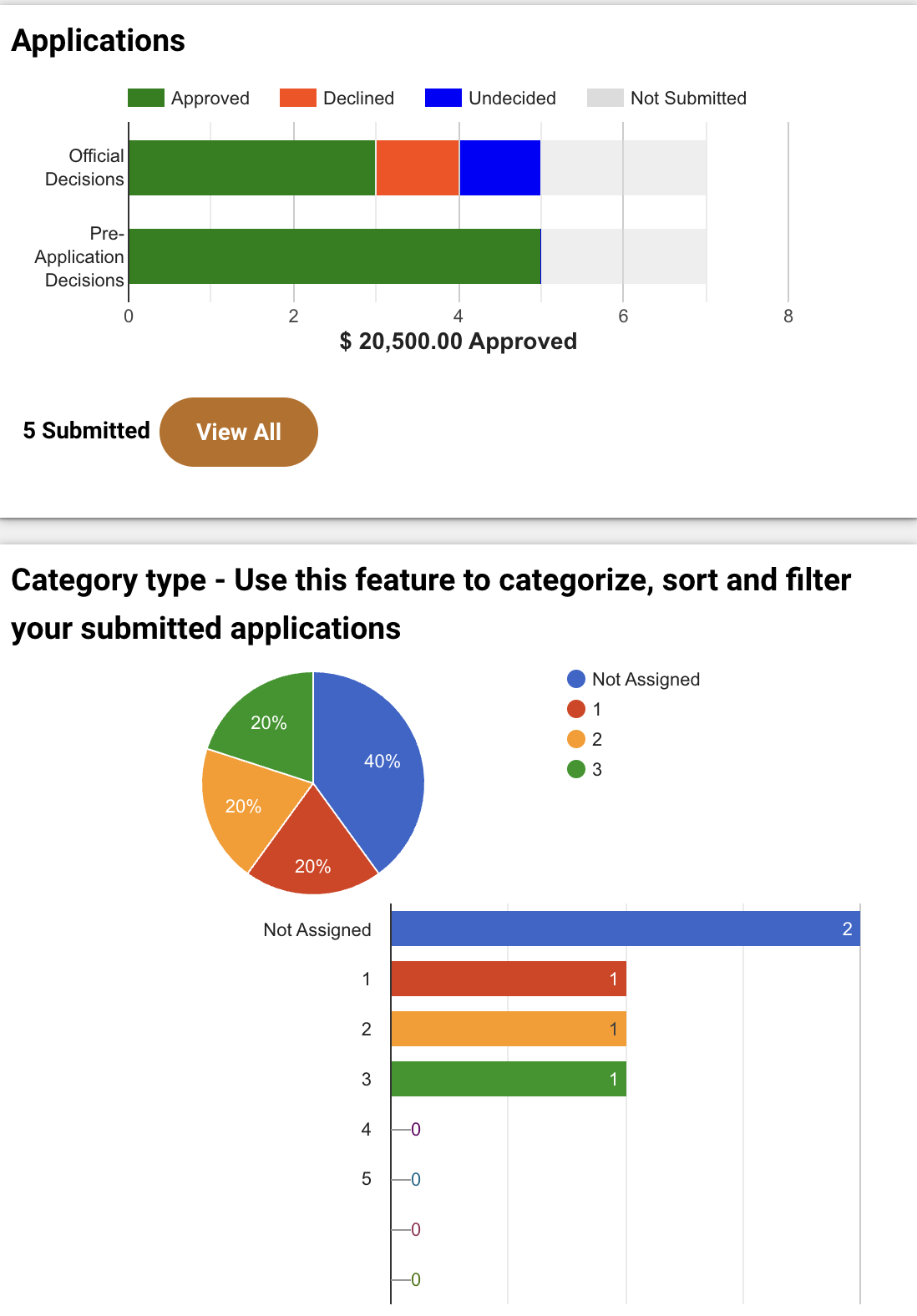
Filter Applications from the Dashboard
From the Dashboard, you can quickly access filtered application lists:
- Click a section of the stacked bar chart (Undecided, Approved, Declined, Not Submitted) to view applications with that status
- Click View All to see the full applications list
- Select a custom status bar to view applications with specific tags or labels
Set a Filter in the Applications Lists
To create a custom filter:
- Click the filter icon in the upper-right corner
- Use the checkboxes and dropdown menus to select your criteria
- Click Set Filter to apply and reload the list
Important: Filters use AND logic, meaning multiple selections will narrow results to applications that meet all selected criteria.
- The filter icon will display a colored background when a filter is active
- To remove a filter, click the icon and select Clear Filter
Switch Between Application Sets
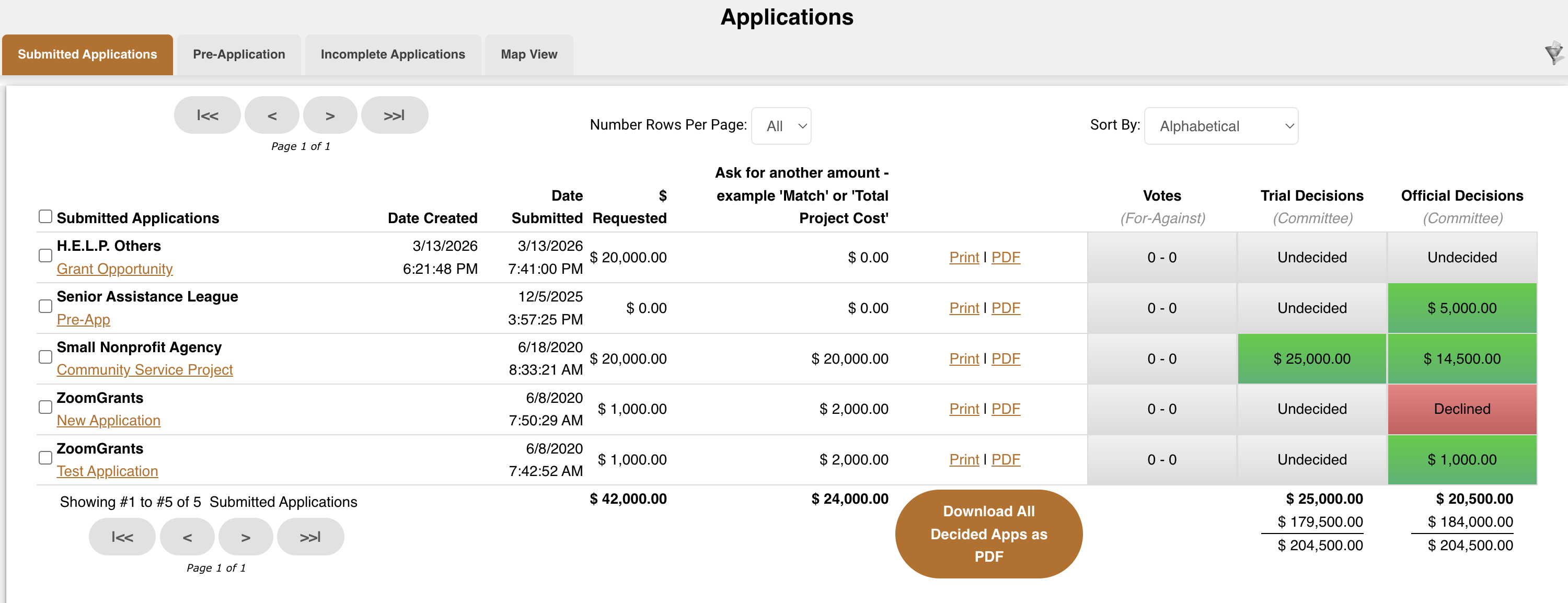
Use the tabs at the top of the Applications List to view different groups:
Administrator Access
- Can view submitted applications
- Can view pre-applications (if applicable)
- Can view incomplete applications
Reviewer Access
- Can view submitted applications
- Can view pre-applications (if applicable)
Sort Applications
- Click any column header to sort the list by that field
Sort Applications
- View an Application – Click the application title to open it
- Download as PDF – Click the PDF link to download a copy
- Print Preview – Click the Print link for a printable version
- Download All Applications – Click Download All Decided Apps as PDF to export all applications as a ZIP file
Updating Applications
Administrator can use batch and list update tools to:
- Update application labels and statuses
- Modify application settings
Additional Actions
- Send Email to Selected – Email selected applications
- Send Email to Incomplete – Contact applicants with unsubmitted applications
- Mass Update of Contract Text – Apply updates across multiple applications